---
title: "Prerendering Blazor Apps - How does it work / tips and tricks"
description: "Blazor comes with the option to prerender your webpage on the server. This works for the client-side version as well as the server side version of Blazor.\n\nLet's have a look how does it work and what might be some pitfalls and how can we come around those."
updated: 2022-01-19
tags: [".NET6", "C#", "Blazor", ".NET5"]
canonical: "https://steven-giesel.com/blogPost/aa5a6a5c-7f73-4262-9acb-14b645f79417/prerendering-blazor-apps-how-does-it-work-tips-and-tricks"
---
# Prerendering Blazor Apps - How does it work / tips and tricks
## What is Prerendering?
First of all we have to clarify what does "prerendering" mean in Blazor. Why would one do this? And furthermore will this apply to Blazor Client as well as Blazor Server?
How would a normal initial request without prerendering look like?
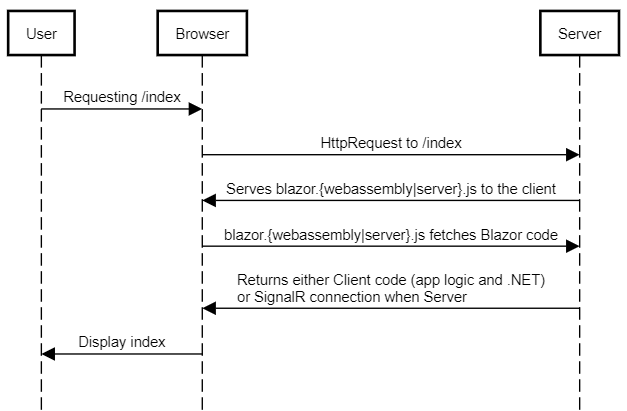
1. Our user hits our page. So our browser will go to the given address and load our index file.
2. Our server now will serve different things depending if we use Client or Server
1. **Client**: We are serving a `blazor.webassembly.js` which bootstraps the download of your application assemblies and .NET assemblies which are then compiled to WebAssembly and executed
2. **Server**: We are serving a `blazor.server.js` which creates a SignalR connection from your browser to the web server. The SignalR connection basically dispatches your inputs to the server and returns the new "HTML-Diff"
3. The bootstraped version will render your component and display it to the User
**What is the problem here?**
We have 2 problems. One for the client-side blazor and one for the server-side:
* **Client-side:** Before the user can interact with your website all the content has to be downloaded. That can take a while
* **Client-side / Server-side:** As we need JavaScript and SignalR or WebAssembly you will have a hard time optimizing your website for search engines. They often times don't execute JavaScript or will have problems with WebSockets / WebAssembly.
The solution: **Prerendering**
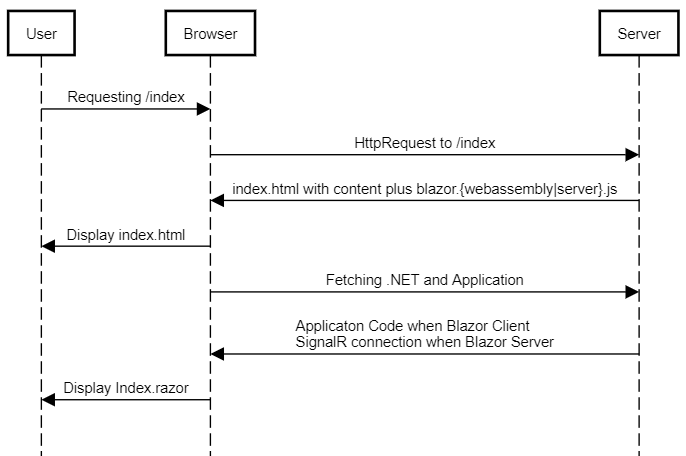
Prerendering means just that we take the first request and pretend to be like a normal ASP.NET Core website. We just render everything and will return the content (static html) to the client (next to the other stuff described above). This is how it looks like:
**Benefits**
* For **client-side** blazor we show the initial site to the user without downloading the "big" .NET package. So the user has a way smoother experience
* For **both**: We enable SEO.
### How to enable that?
Well that is super easy. You head to your `_Host.cshtml` and add the `render-mode` like the following
```csharp
```
For client-side / WebAssembly
```csharp
```
For server side Blazor.
## The Downside
Now the diagram is showing two "displays" / "renders", is this right? Yes. Have a look at the following component:
```csharp
@page "/"
@inject IUserRepository userRepository
@foreach(var user in users)
{
}
@code {
private List users = new();
protected override async Task OnInitializedAsync()
{
Console.WriteLine("I was called");
users = await userRepository.GetAllUsers();
}
}
```
If you enable prerendering and you look on your Output console you will see the `I was called` twice. The reason is simple. The first time `OnInitializedAsync` is called happens on the server. So the server has to do all the work to create the static html website. After we are done and the content is sent to the user the second `OnInitializedAsync` kicks in. As now WebAssembly or SignalR circuts starts they will do the same thing again. They didn't "know" that it was already rendered.
So if you do heavy work it would be done twice! Obviously a down site. Plus: Your user can see an obvious flicker as the page gets refreshed.
**Is there something we can do?**
## .NET 6 to the rescue - meet `persist-component-state`
Now .NET6 brings a helper for exactly that case: [`persist-component-state`](https://docs.microsoft.com/en-us/aspnet/core/mvc/views/tag-helpers/built-in/persist-component-state?view=aspnetcore-6.0). Simplified it is a cached filled by the server and also sent to the client. So kind of a pre-filled cache.
Let's have a look at how does it work. The setup is a bit different for client-side and server-side Blazor.
### Setup
Now let's have a look at the client-side first. Head to your `Pages/_Host.cshtml` and add the following just before the end of your `body` tag.
```html
```
So the simple `` is totally enough.
Now how do we use it?
Let's have a look at our "new" `Index.razor`
```csharp
@page "/"
@implements IDisposable
@inject PersistentComponentState applicationState
@inject IUserRepository userRepository
@foreach(var user in users)
{
}
@code {
private const string cachingKey = "something_unique";
private List users = new();
private PersistingComponentStateSubscription persistingSubscription;
protected override async Task OnInitializedAsync()
{
persistingSubscription = applicationState.RegisterOnPersisting(PersistData);
if (applicationState.TryTakeFromJson>(cachingKey, out var restored))
{
users = restored;
}
else
{
users = await userRepository.GetAllUsers();
}
}
public void Dispose()
{
persistingSubscription.Dispose();
}
private Task PersistData()
{
applicationState.PersistAsJson(cachingKey, users);
return Task.CompletedTask;
}
}
```
Now let's unwrap that a bit:
* `@inject PersistentComponentState applicationState` this is the component which does the "caching" for us.
* We enhanced our `OnInitializedAsync` with ` persistingSubscription = applicationState.RegisterOnPersisting(PersistData);`. The idea is to create a subscription so that we add something to the cache it stays there on the client side as well.
* If we close our webpage / navigate somewhere else, we have to cancel the subscription. This is done in the `Dispose` message. That is why we added `@implements IDisposable` at the top
* The following part is just: Do we have under the key some entry, if yes return it and populate it into `users` otherwise go to the repository.
```csharp
if (!applicationState.TryTakeFromJson>(cachingKey, out var restored))
{
users = restored;
}
else
{
users = await userRepository.GetAllUsers();
}
```
* Please be aware that is very important to have the same key for saving and restoring caching entries. If you every used [`IMemoryCache`](https://docs.microsoft.com/en-us/dotnet/api/microsoft.extensions.caching.memory.imemorycache?view=dotnet-plat-ext-6.0) you are well aware.
# Resources
If you want to know more about this topic have a look at the follwing:
* [Persist Component State](https://docs.microsoft.com/en-us/aspnet/core/mvc/views/tag-helpers/built-in/persist-component-state?view=aspnetcore-6.0) on MSDN
* [Prerendering in Blazor](https://docs.microsoft.com/en-us/aspnet/core/mvc/views/tag-helpers/built-in/persist-component-state?view=aspnetcore-6.0)