---
title: "Central nuget store for your UNO Platform App"
description: "With the newest UNO Platform update to .NET 6 we can leverage some cool things to simplify our dependency management.\nWe combine .NET 6 with the new feature called **Directory.Build.props** to make that work."
updated: 2022-06-27
tags: ["UNO Platform", "C#"]
canonical: "https://steven-giesel.com/blogPost/be9722bb-3077-401f-b88d-7393e7afe880/central-nuget-store-for-your-uno-platform-app"
---
# Central nuget store for your UNO Platform App
With the [4.2 release of the UNO Platform](https://platform.uno/blog/4-2-release/) we are in the final stages to be production ready. The release brings the .NET 6 version to "RC" stable. With that we can leverage a trick I showed earlier in the blog, meet [**Directory.Build.props**](https://steven-giesel.com/blogPost/f3f46814-06c9-41b7-84fa-09ebb3305ed0).
If you are not familiar with the UNO Platform at all, I covered that in a greater detail [here](https://steven-giesel.com/blogPost/b2234ada-0978-4c7b-841e-ca6a255247b0). There you can also discover links to the official website: [https://platform.uno/](https://platform.uno/).
That said the dependency management was one of my major concern back then... and this got addressed by the developer team with the update to the latest .NET 6 version.
## Setup
The base for this setup can be found under [`dotnet new templates for Uno Platform`](https://platform.uno/docs/articles/get-started-dotnet-new.html). If you don't have the Uno Platform tools installed run the following command:
```bash
dotnet tool install -g uno.check
```
If you have the tools already installed but want to update to the latest version:
```bash
dotnet tool update -g uno.check
```
You can also check if you have the newest project templates installed:
```bash
dotnet new install Uno.ProjectTemplates.Dotnet
```
After that we will be able to create our new app with .NET 6 support. For that the Uno Platform team gave us a handy dotnet template:
```bash
dotnet new unoapp-winui-net6 -o UnoDirectoryBuildProps
```
There is also `dotnet new unoapp-net6 -o MyApp`. The trick will not work with this template. The reason is that the "old" **UWP** head is .NET Framework. The **Directory.Build.props** "trick" only works with C# 9 or higher. The [.NET Framework is limited to C# 7.3](https://docs.microsoft.com/en-us/dotnet/csharp/language-reference/configure-language-version).
If you did not exclude any of the "heads" you folder structure would look roughly like that:
```no-class
UnoDirectoryBuildProps.Mobile/
UnoDirectoryBuildProps.Shared/
UnoDirectoryBuildProps.Skia.Gtk/
UnoDirectoryBuildProps.Skia.Linux.FrameBuffer/
UnoDirectoryBuildProps.Skia.WPF/
UnoDirectoryBuildProps.Skia.WPF.Host/
UnoDirectoryBuildProps.Wasm/
UnoDirectoryBuildProps.Windows/
UnoDirectoryBuildProps.sln
```
Now we are totally set and can embrace the power of the Directory.Build.props.
## Creating the central NuGet repository
In super short we need a few things to pull this off:
1. A central place to manage all of our dependencies
2. Exclude selectively some packages for some Heads.
### A central place to manage all of our dependencies
There are a lot of projects and it is very tedious to add a new package one by one to all of those projects. That is where the [**Directory.Build.props**](https://docs.microsoft.com/en-us/visualstudio/msbuild/customize-your-build?view=vs-2022) comes into play. The rough idea is that when you build your csproj file, dotnet will check recursively every folder and parent folder for a Directory.Build.props file, which if exists, will then be included. I will link [my article](https://steven-giesel.com/blogPost/f3f46814-06c9-41b7-84fa-09ebb3305ed0) again here if you still not sure what I am referring about.
There are packages like let's say **StyleCop** or **SonarAnalyzers** you just want to have in every project. So let's use this as an example. I will the following Directory.Build.props to the root of the solution (I will link this example at the end of the blog post).
```xml
all
runtime; build; native; contentfiles; analyzers; buildtransitive
all
runtime; build; native; contentfiles; analyzers; buildtransitive
$(MSBuildThisFileDirectory)\stylecop.analyzers.ruleset
5
true
```
So we are adding StyleCop and the SonarAnalyzers. By the way your folder structure should now look like this:
```no-class
UnoDirectoryBuildProps.Mobile/
UnoDirectoryBuildProps.Shared/
UnoDirectoryBuildProps.Skia.Gtk/
UnoDirectoryBuildProps.Skia.Linux.FrameBuffer/
UnoDirectoryBuildProps.Skia.WPF/
UnoDirectoryBuildProps.Skia.WPF.Host/
UnoDirectoryBuildProps.UWP/
UnoDirectoryBuildProps.Wasm/
UnoDirectoryBuildProps.Windows/
UnoDirectoryBuildProps.sln
Directory.Build.props
stylecop.analyzers.ruleset
stylecop.json
```
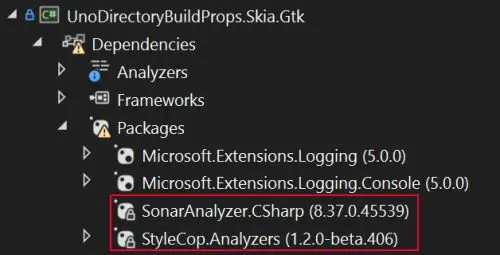
Of course stylecop here is optional and only for demonstrational purposes. Let's check if our Uno Platform projects "see" the new dependencies.
### Exclude selectively some packages for some Heads.
Now not all the time every project should include all the dependencies. And that is especially important for the Uno Platform. A bit more context. The guys and girls from the Uno Platform did hard work to get the Windows Community Toolkit work on your [Uno Platform App](https://platform.uno/uno-toolkit/) (a lot of cool controls and other things making your life easier). **But** you should not include those Uno Platform nuget packages to your **UWP** or **WinUI** head. For those "special" ones we use the packages which a developer would normally use if he would "only" write an UWP or WinUI app. To recap: For everything besides UWP/WinUI we take the Uno Platform nuget packages and for UWP/WinUI we take the official Microsoft nuget packages.
And that we can easily model with the Directory.Build.props. Until now StyleCop and SonarAnalyzers will be referenced in **every** project.
So let's say we want to add the `Uno.CommunityToolkit.WinUI.Controls` package. That would mean (without Directory.Build.props) running through multiple projects to add the packages **except** for the **UWP** where we want to use the `CommunityToolkit.WinUI.Controls`.
With the **Directory.Build.props** we can leverage the `Condition`. One example would look like this:
```xml
```
We would use the concrete project name. That is a total valid strategy. Another option (and this is how the Uno Platform guys do it) is to use the concrete .net target version. It would look like this:
```xml
```
The example is taken from the [GitHub repository](https://github.com/unoplatform/Uno.WindowsCommunityToolkit). Now to get the concrete target framework version just check the `TargetFramework` element in the WinUI3 csproj file. Mine looks like this `net6.0-windows10.0.19041.0` therefore this condition.
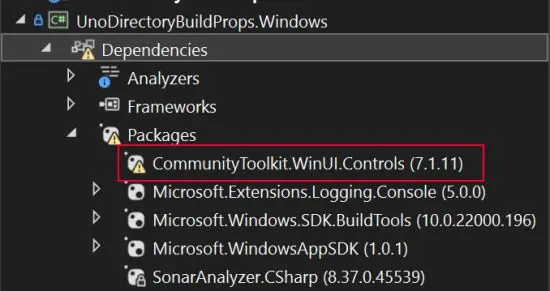
And that is all. Now the WinUI 3 Head first. Here we want to have the `CommunityToolkit.WinUI.Controls` package:
And here for example the WASM head:
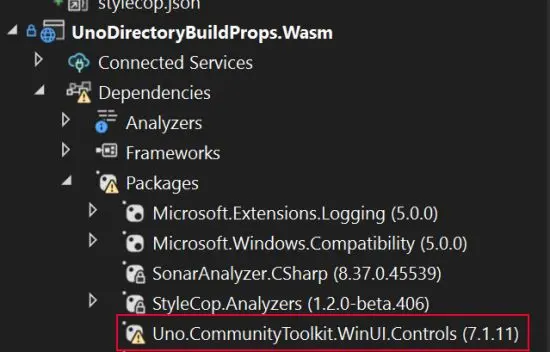
Perfect. Exactly what we want. Dependency management can make a lot of fun.
## Conclusion
With the **Directory.Build.props** we easily managed all our dependencies. Also we categorized them in 2 groups. The ones we want to have in every project and the ones (like UI controls) we want to have only in a certain group of projects or a single project itself.
## Resources
* The code to this example can be found [here](https://github.com/linkdotnet/BlogExamples/tree/main/UnoDirectoryBuildProps).
* All my examples can be found [here](https://github.com/linkdotnet/BlogExamples).