---
title: "Reusable loading Bar Component in Blazor"
description: "In our Blazor components we often call a repository or web API which takes some time. So it is nice to indicate to an user what the current state is. That is why we will create a small indicator even with steps to indicate how far we are in the progress."
updated: 2022-03-31
tags: ["CascadingParameter", "Blazor", "C#"]
canonical: "https://steven-giesel.com/blogPost/d1884385-90de-43a1-ae24-0178495f1484/reusable-loading-bar-component-in-blazor"
---
# Reusable loading Bar Component in Blazor
Sometimes we have a task which takes a bit longer. Just imagine you want to grab a big amount of data, process this data and then make it visible to the user. If this takes a bit of time nothing really happens from the eyes of the user. So lets create a reusable loading bar component in Blazor.
## The loading bar component
We will keep it simple for the beginning. Feel free to tweak everything you want. As Blazor comes with Bootstrap, we will use Bootstrap for our loading bar itself. So let's create a new `Loading` razor component:
```xml
Some description here
}
```
We need a few things here to do:
1. We have to switch the visibility of our loading bar component and of our "real" rendered component. As said we will keep it very simple. You can adjust this to your needs.
2. We don't want to know the "real" component from the eyes of the `LoadingComponent` otherwise it wouldn't be really reusable.
3. The "real" component has to set the title, total steps and the current step from within its component.
The first step is we need a container which models some of the requirements. This container is hosted by the `LoadingComponent` and gets passed down to the real component. The `LoadingComponent` also has to listen to changes when the container changes. For all of you which worked with **WPF** or **UWP** you will feel "at home". We will use the [`INotifyPropertyChanged`](https://docs.microsoft.com/en-us/dotnet/api/system.componentmodel.inotifypropertychanged?view=net-6.0) interface.
This is our model:
```csharp
using System.ComponentModel;
using System.Runtime.CompilerServices;
namespace BlazorLoadingComponent.Shared;
public class LoadingConfiguration : INotifyPropertyChanged
{
private string _title;
private int _currentStep;
private int _totalSteps;
private bool _isLoading;
public string Title
{
get => _title;
set
{
_title = value;
OnPropertyChanged();
}
}
public int CurrentStep
{
get => _currentStep;
set
{
_currentStep = value;
OnPropertyChanged();
}
}
public int TotalSteps
{
get => _totalSteps;
set
{
_totalSteps = value;
OnPropertyChanged();
}
}
public bool IsLoading
{
get => _isLoading;
set
{
_isLoading = value;
OnPropertyChanged();
}
}
public int GetPercentage()
{
return TotalSteps > 0 ? (int)((double)CurrentStep / (double)TotalSteps * 100) : 0;
}
public event PropertyChangedEventHandler? PropertyChanged;
protected virtual void OnPropertyChanged([CallerMemberName] string? propertyName = null)
{
PropertyChanged?.Invoke(this, new PropertyChangedEventArgs(propertyName));
}
}
```
We have the 3 values which we need for the `LoadingComponent`: `Title`, `CurrentStep` and `TotalSteps`. If one of those is changed we will invoke the `OnProperyChanged` event which then can be picked up by our `LoadingComponent` to refresh the state.
With this information we can model:
```xml
@LoadingConfiguration.Title
@code {
private LoadingConfiguration LoadingConfiguration { get; set; } = new();
private string DisplayClassLoading => LoadingConfiguration.IsLoading ? "initial" : "none";
private string DisplayClassChildContent => LoadingConfiguration.IsLoading ? "none" : "initial";
protected override void OnParametersSet()
{
// Everytime any property changes we update our UI
LoadingConfiguration.PropertyChanged += (_, _) => StateHasChanged();
}
}
```
What it does is basically, we will make the loading bar visible when the `IsLoading` flag is set to `true` and show all the information to model the loading bar itself including the title, steps and so on.
Now you might wonder why I don't take something like `@if(LoadingConfiguration.IsLoading) { } else { }`. The reason is simple. If we set `IsLoading` to true it will show our loading bar, that is nice, but it will also remove our "real" component from the render tree. This is just how Blazor works. Therefore both components should be in the render tree all the time but both should not be visible at the same time.
Now the last bit: Add the "real" component placeholder:
```csharp
@ChildCoontent
@code {
[Parameter]
public RenderFragment ChildContent { get; set; }
private LoadingConfiguration LoadingConfiguration { get; set; } = new();
private string DisplayClassLoading => LoadingConfiguration.IsLoading ? "initial" : "none";
private string DisplayClassChildContent => LoadingConfiguration.IsLoading ? "none" : "initial";
protected override void OnParametersSet()
{
// Everytime any property changes we update our UI
LoadingConfiguration.PropertyChanged += (_, _) => StateHasChanged();
}
}
```
That is nice. Now we could use our component. But wait there is one thing missing! We need to pass down our `LoadingConfiguration` down to the `ChildContent`. To do so we will leverage [`CascadingValue`](https://docs.microsoft.com/en-us/aspnet/core/blazor/components/cascading-values-and-parameters?view=aspnetcore-6.0):
```xml
@ChildContent
```
That is all! We are done with our loading bar. Now we can use it in action. Lets create a new `HeavyLoadComponent` which does some stuff and propgates it changes via the `LoadingConfiguration` to its parent.
```csharp
Roles:
@foreach (var role in _roles)
{
@role
}
@code {
[CascadingParameter]
public LoadingConfiguration LoadingConfiguration { get; set; } = default!;
private string[] _roles = Array.Empty();
protected override async Task OnInitializedAsync()
{
// Here we will simulate some heavy work via Task.Delay
LoadingConfiguration.TotalSteps = 3;
LoadingConfiguration.Title = "Getting Data";
LoadingConfiguration.IsLoading = true;
await Task.Delay(1000);
_roles = new[] { "Admin", "Co-Admin", "User" };
LoadingConfiguration.CurrentStep++;
LoadingConfiguration.Title = "Filter Data";
await Task.Delay(1000);
_roles = _roles.Where(s => s.Contains("Admin")).ToArray();
LoadingConfiguration.CurrentStep++;
LoadingConfiguration.Title = "Another step to prepare the matrix...";
await Task.Delay(1000);
LoadingConfiguration.CurrentStep++;
LoadingConfiguration.Title = "Almost there...";
await Task.Delay(1000);
LoadingConfiguration.IsLoading = false;
}
}
```
The `LoadingConfiguration` gets picked up by the child component via `CascadingParameterAttribute`. Now everytime we do a change the `LoadingComponent` will see the change via the event and therefore updates the UI to the new set values!
The usage is super simple:
```xml
```
The result:
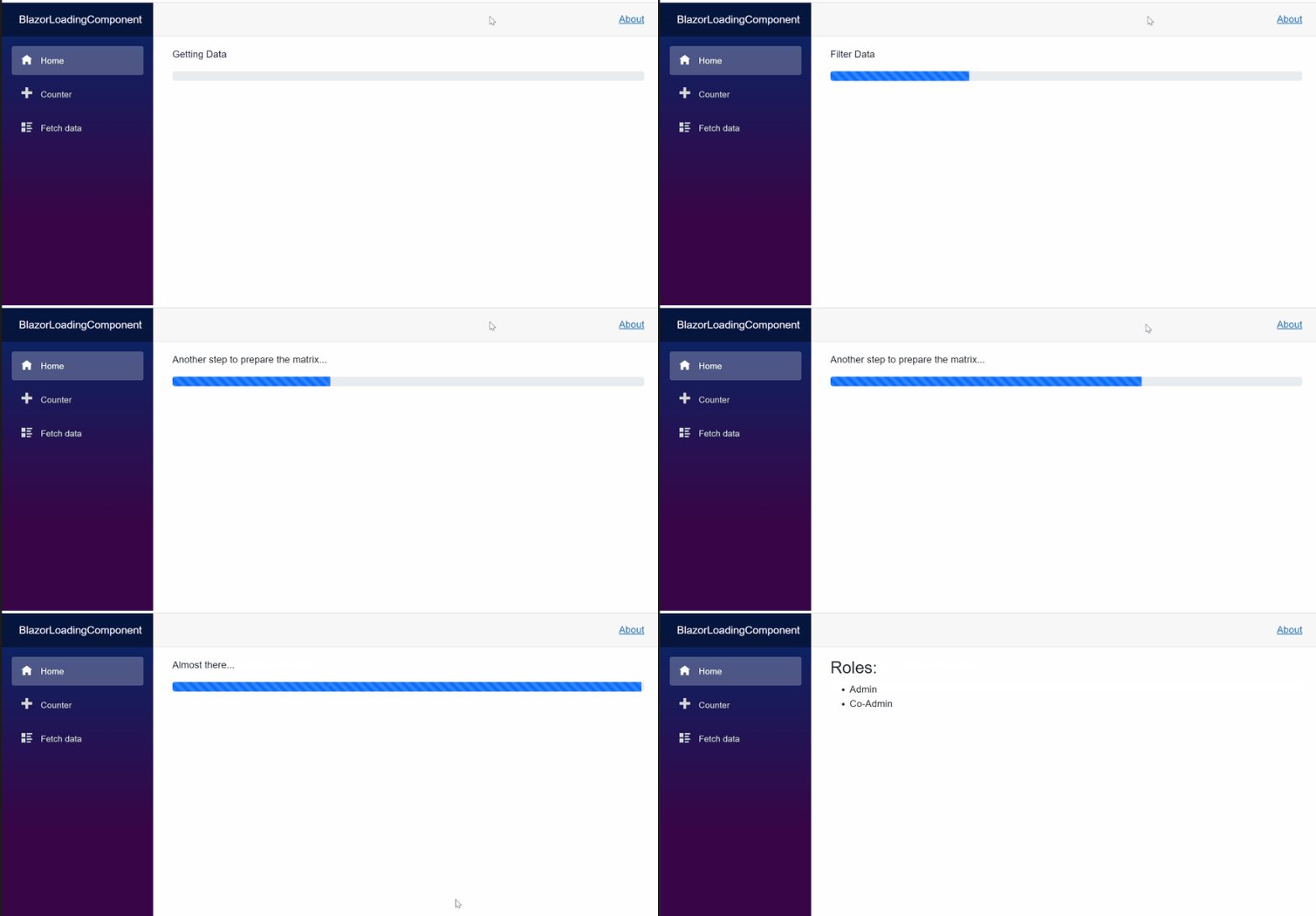
Awesome!
## Conclusion
We wrote a nice component which does loading bar stuff for us without knowing the real child component. Also the child component does not have an idea about his parent.
## Resources
* This sample on [GitHub](https://github.com/linkdotnet/BlogExamples/tree/main/BlazorLoadingComponent)